Case Editor
The Case tab is where packaging constraints become real geometry: walls, clearance, lids or panels, keep-outs, cutouts, mounts, and imported reference parts.
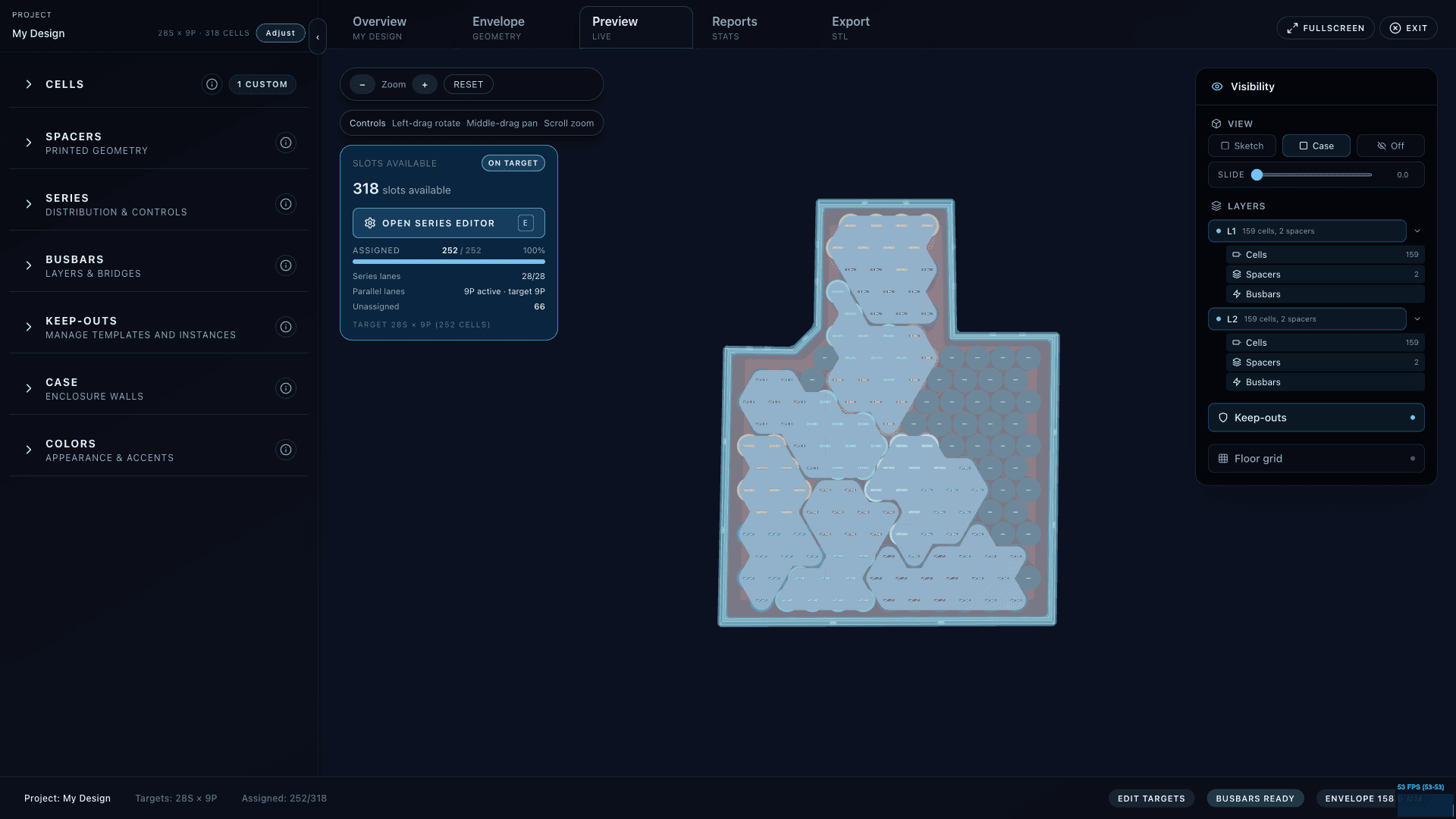
Start here
- Enable Case if it is off. Enabling defaults missing wall thickness to 4 mm.
- Set Wall, Chamfer, and Clearance in millimeters.
- Choose a case type: Printed, Panelized, or Bossed.
- Add keep-outs and imports before painting series if they may remove or reserve cell space.
- Use the Stack panel to check the vertical cell, spacer, and case buildup.
Case types
Printed
A unified printed shell with optional removable lids on top, bottom, or side faces. Use this for conventional 3D-printed enclosures.
Panelized
A body with explicit removable panels on selected faces. Add panels from the Panels sidebar, then use Options for rim, seat, clearance, and fastener settings.
Bossed
A monolithic side shell with removable top and bottom covers that screw into bosses anchored in the wall band. Use Options for cover thickness, clearance, edge extension, and boss geometry.
Sidebars and tools
Lids
Printed mode uses Lids. Pick top, bottom, or side faces, then set lip depth, lip thickness, clearance, and optional mounting holes.
Panels
Panelized mode uses Panels instead of Lids. Add only the faces you want to panelize; side panels that are too small can be skipped by minimum inner span.
Keep-outs
Reserve space for BMS boards, harnesses, cable paths, airflow, or brackets. Keep-outs remove cell slots from the generated scene.
Cutouts
Place round or rectangular cutouts, then edit dimensions, position, rotation, host, and depth mode in the draggable cutout panel.
Mounts
Add triangle or square-plus-slot external mounts. Edit face, edge, position, size, hole/slot dimensions, rotation, and applied status.
STL Imports
Import reference STL files up to 30 MB, show or hide them, and adjust position, rotation, scale, color, and opacity.
Cutout depth and hosting
- Depth mode To interior cuts until the interior surface is reached.
- Depth mode Fixed uses the entered millimeter depth.
- Depth mode Through cuts through the host part.
- In panelized mode, cutouts default to the lid/panel host.
- In bossed mode, top and bottom cutouts default to lid-hosted while side cutouts stay case-hosted.
- In printed mode, a cutout is lid-hosted only when the selected face has a lid; otherwise it is case-hosted.
Do case constraints before wiring
Keep-outs and case clearances can change the generated cell grid. Set the case first, then paint Series lanes and lock them.
Keyboard controls
- T selects top face and B selects bottom face while case face picking is active.
- Number keys 1-9 select side faces.
- Arrow keys nudge the selected cutout. Hold Shift for larger steps or Alt for smaller steps.
- Delete or Backspace removes the selected cutout.
- Esc closes the active tool or exits Case editing when no tool is active.